Introduction
Your Agentr.ee website should reflect your personal brand. The customize template feature lets you update fonts, colors, and switch templates, so your site matches your marketing and builds trust with clients.
Step by step instructions
- Open customize
- Desktop: Click Customize in the left sidebar.
- Mobile: Open hamburger menu and click Customize.
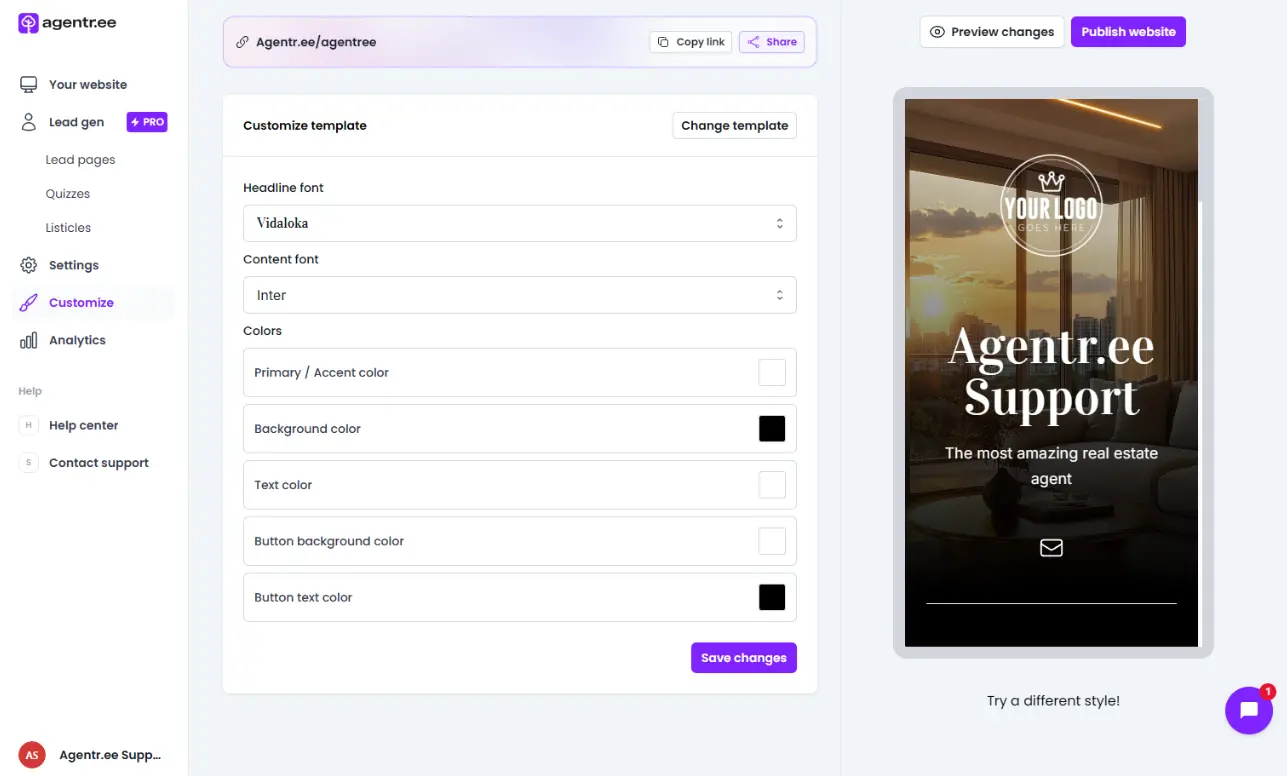
- Adjust fonts
Select your headline font and content font from the dropdowns. - Set your colors
Click each color field to set your primary, background, text, button background, and button text colors.
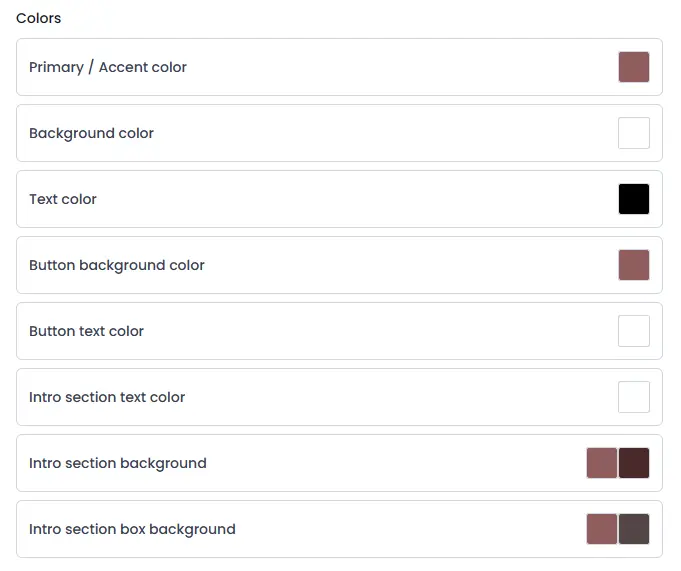
Some templates include extra fields like intro section text, intro section background, and intro section box background. (See screenshot below)
- Preview your changes
- Desktop: Watch the live preview on the right to confirm the look before saving.
- Mobile: Click Preview button to review and confirm changes.
- Save your changes
Click Save changes to apply your style. - Changing template
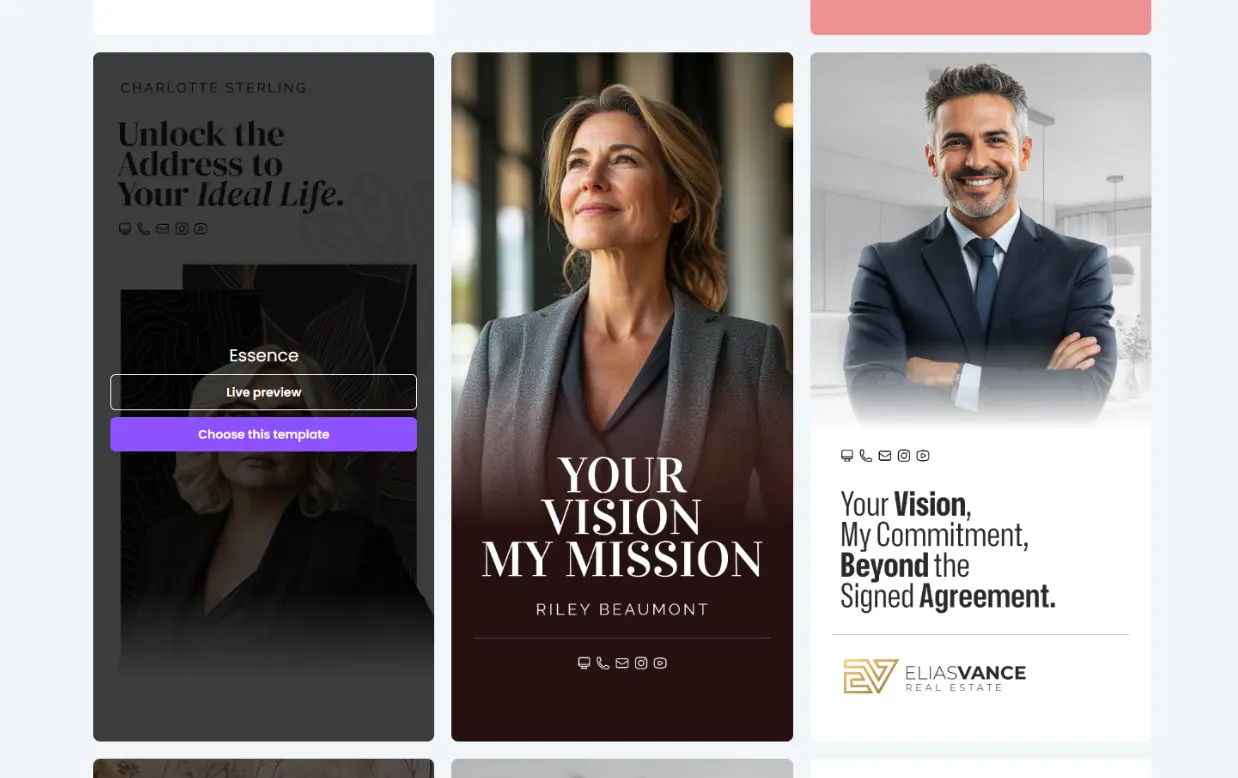
Click Change template, browse designs, then click Choose this template on the style you want. (See Screenshot below)
- Confirm template preferences
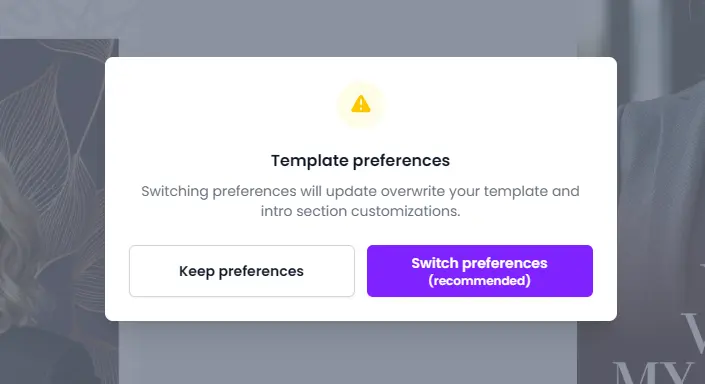
When the confirmation appears, choose:
- Keep preferences to keep your current fonts and colors,
- Switch preferences (recommended) to use the new template’s defaults. This will change your previously selected colors, fonts and hero content to reflect template design. (See Screenshot below)
Note: Free accounts include one starter template. Pro accounts unlock 60+ professionally designed templates to choose from.
Note: The number of color fields varies by template. If you see more options than in the screenshots, your selected template supports additional styling.
Pro tips
- Match your primary color to the color you use on business cards and social media, clients will recognize you faster.
- Choose clean, readable fonts, then check the mobile preview before you publish.
- Save your final color hex codes somewhere safe, so you can reuse the exact shades on future templates.
FAQ and troubleshooting
Q: Why do I see more color options than in the example?
A: Some templates include extra styling fields, such as intro section backgrounds. This depends on the template design.
Q: If I switch templates will I lose my content?
A: If you select option to Switch preferences, colors, fonts and intro section of your website will change. The rest of your website content will remain the same.
Q: Can I go back to a previous template?
A: Yes. Open Change template, then select your previous design again.
Q: My preview looks right, but the live site did not change. What should I do?
A: Click Save changes, then click Publish website. If needed, refresh your live page to clear the browser cache.